.png?fit=max&auto=format&n=tUtwuHgibAuVylZ9&q=85&s=44653a825fa0664047dae92cd8969b2d)

Individual Deletion
If you only need to remove a few specific files, you can do so directly from the storage list or grid view.1
Select Files
In the Storage dashboard, use the checkboxes next to the files you want to remove.
2
Click Delete
The Delete button will appear at the top of the list once at least one item is selected.
3
Confirm
A confirmation dialog will appear. Click Confirm Delete to permanently remove the selected items.
Mass Deletion (Danger Zone)
For large-scale cleanup, Fivemanage offers a powerful Mass Delete tool in the Danger Zone. This is useful for clearing out months of old data that is no longer needed.Mass deletion requires Owner permissions for the team.
How to use Mass Delete
1
Navigate to Danger Zone
Go to Storage > Danger Zone in your dashboard.
2
Select Asset Types
Choose which types of media you want to target (Images, Videos, or Audio). You can select one or all of them.
3
Choose a Date Range
Select the start and end dates for the files you want to delete. The system will calculate how many files match your criteria.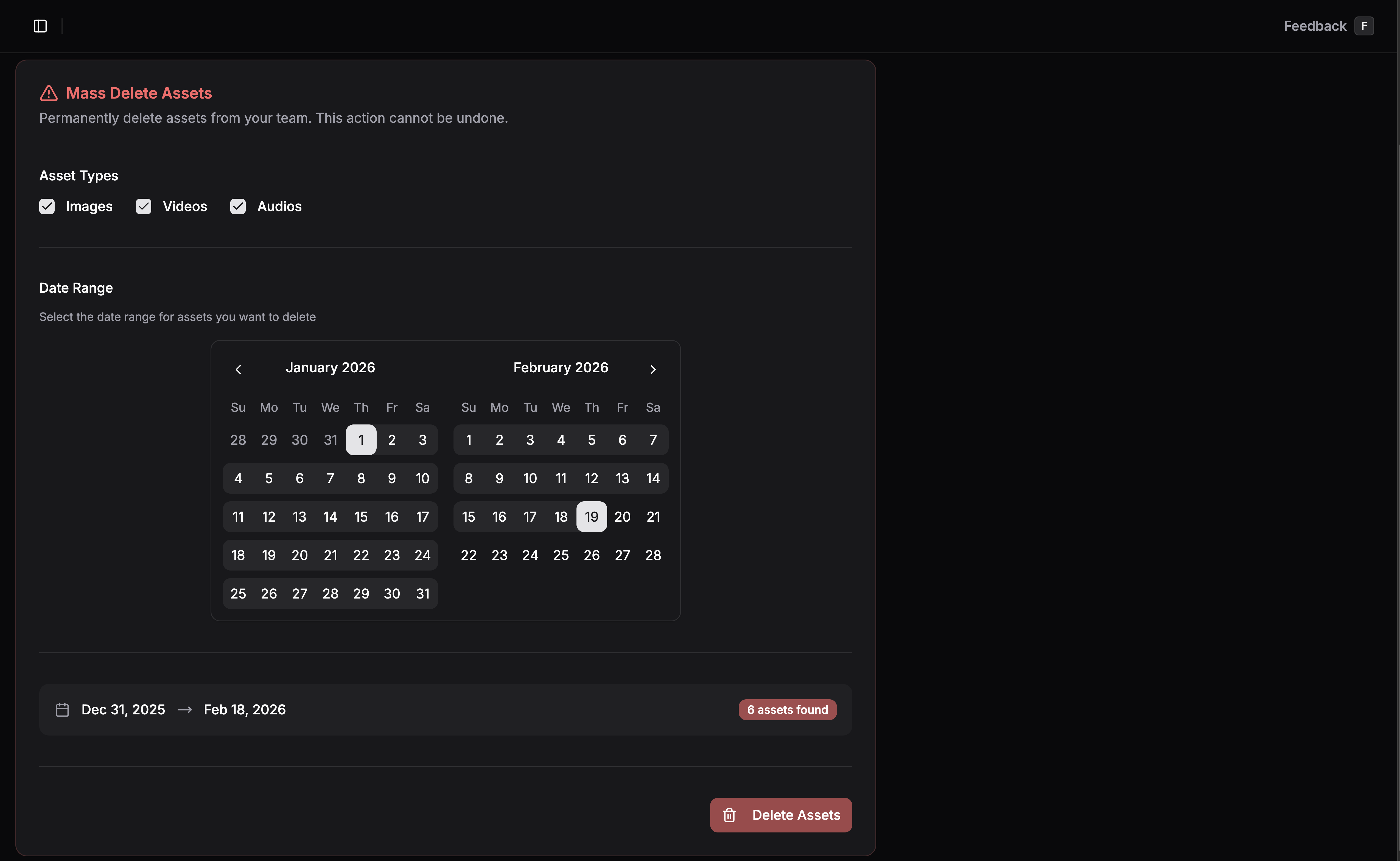
4
Confirm with Team Name
To prevent accidental deletion, you must confirm the total count of files before the process begins.
Important Considerations
Retention Exempt Files
Files marked as Retention Exempt will still be deleted if you manually select them for deletion or if they fall within a Mass Deletion date range. Exemption only protects files from automatic cleanup policies.Bulk Selection Tips
- Use the Search bar to find specific groups of files (e.g., by extension or filename) before selecting them for deletion.
- You can filter by Media Type to quickly select all videos or all audio files in the current view.
Manage Automatic Deletion
Learn how to set up automatic retention policies so you don’t have to delete files manually.