Learn how to migrate your files from Fivemerr to Fivemanage
Fivemerr is shutting down, but you can easily move all your files to Fivemanage using our automated migration tool. This guide will walk you through the process.
After uploading the CSV, you’ll see a preview of the files to be migrated.
File Stats: You’ll see the total number of files and their total size.
Retention Exemption: You can choose to exempt these files from retention policies. This ensures they are never automatically deleted, even if you enable retention rules later.
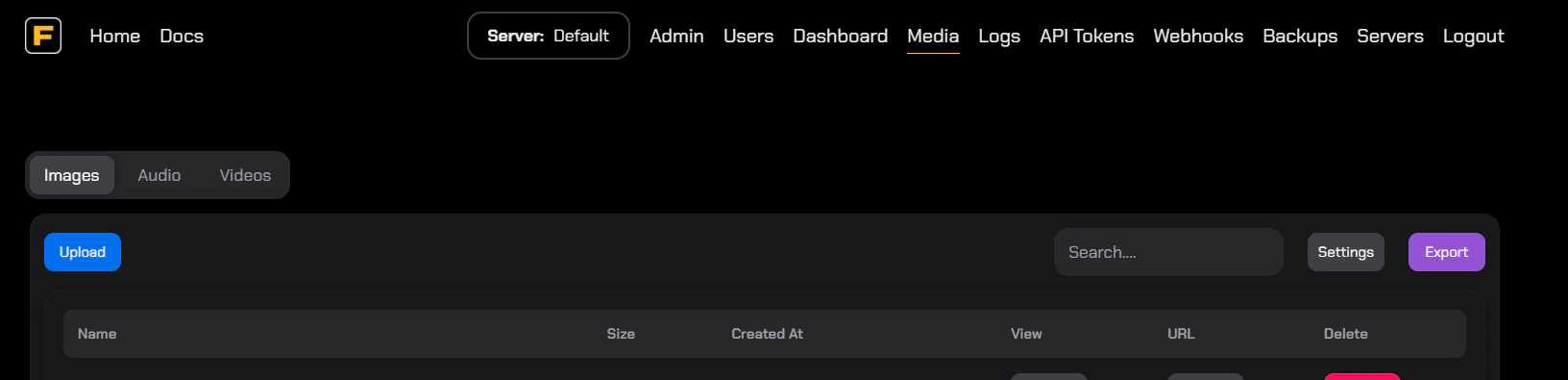
The migration runs in the background. You can close the tab and come back later, but staying on the page allows you to monitor progress in real-time.The status will change from Queued to Processing as files are downloaded from Fivemerr and uploaded to Fivemanage.
If you are on the Free Tier, you have a 10GB storage limit. However, for this migration:
You CAN migrate more than 10GB: We allow you to migrate your entire Fivemerr library, even if it exceeds the 10GB free limit.
Upload Restriction: Once you exceed the 10GB limit, you will not be able to upload new files until you upgrade your plan or delete files to get back under the limit.
Use code FIVEMERR50 for 50% off your first month of any paid plan if you need more storage!
We preserve your original Fivemerr file paths to make the transition as easy as possible. You only need to replace the domain in your scripts or configuration files.
Old URL: https://files.fivemerr.com/images/example.png
New URL: https://r2.fivemanage.com/images/example.png
Simply find and replace files.fivemerr.com with r2.fivemanage.com in your codebase, and your files will continue to work seamlessly.
.png?fit=max&auto=format&n=tUtwuHgibAuVylZ9&q=85&s=44653a825fa0664047dae92cd8969b2d)



 The status will change from Queued to Processing as files are downloaded from Fivemerr and uploaded to Fivemanage.