> ## Documentation Index
> Fetch the complete documentation index at: https://docs.fivemanage.com/llms.txt
> Use this file to discover all available pages before exploring further.
# Migrate from Fivemerr
> Learn how to migrate your files from Fivemerr to Fivemanage
Fivemerr is shutting down, but you can easily move all your files to Fivemanage using our automated migration tool. This guide will walk you through the process.
## Prerequisites
Before you begin, make sure you have:
1. A [Fivemanage account](https://app.fivemanage.com).
2. Created a team on Fivemanage.
## Step 1: Export Data from Fivemerr
First, you need to get the list of your files from Fivemerr.
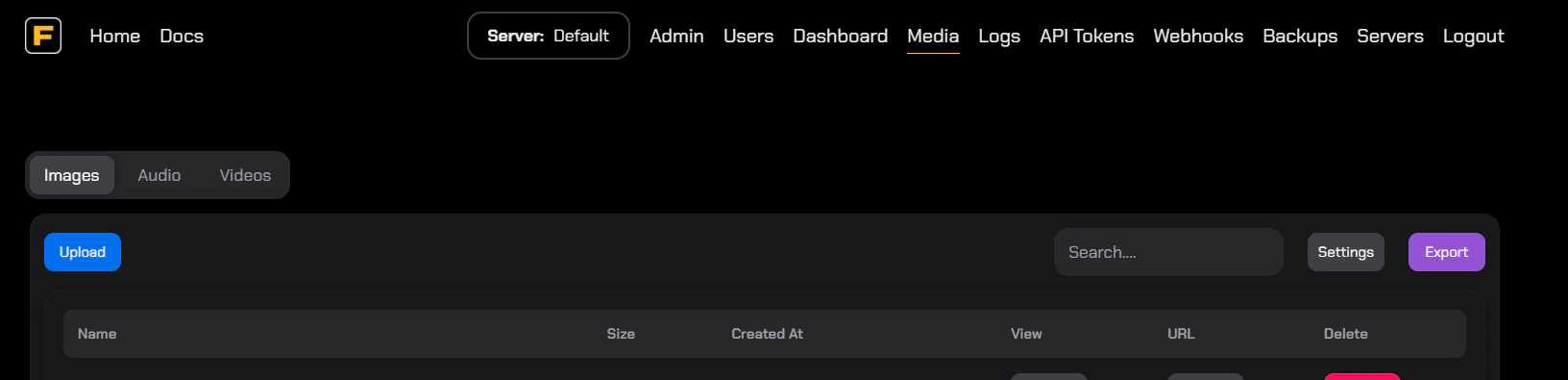
1. Log in to your **Fivemerr dashboard**.
2. Navigate to the **Media** tab
3. Click on **Export** to download a file containing all your file URLs.
 ## Step 2: Start Migration on Fivemanage
Once you have your CSV file, head over to Fivemanage.
1. Go to your [Fivemanage Dashboard](https://app.fivemanage.com).
2. Select your team.
3. Navigate to **Storage** > **Migration**.
4. Drag and drop your Fivemerr CSV file into the upload area.
## Step 3: Review and Migrate
After uploading the CSV, you'll see a preview of the files to be migrated.
* **File Stats**: You'll see the total number of files and their total size.
* **Retention Exemption**: You can choose to **exempt these files from retention policies**. This ensures they are never automatically deleted, even if you enable retention rules later.
Click **Start Migration** to begin the process.
## Step 4: Monitor Progress
The migration runs in the background. You can close the tab and come back later, but staying on the page allows you to monitor progress in real-time.
## Step 2: Start Migration on Fivemanage
Once you have your CSV file, head over to Fivemanage.
1. Go to your [Fivemanage Dashboard](https://app.fivemanage.com).
2. Select your team.
3. Navigate to **Storage** > **Migration**.
4. Drag and drop your Fivemerr CSV file into the upload area.
## Step 3: Review and Migrate
After uploading the CSV, you'll see a preview of the files to be migrated.
* **File Stats**: You'll see the total number of files and their total size.
* **Retention Exemption**: You can choose to **exempt these files from retention policies**. This ensures they are never automatically deleted, even if you enable retention rules later.
Click **Start Migration** to begin the process.
## Step 4: Monitor Progress
The migration runs in the background. You can close the tab and come back later, but staying on the page allows you to monitor progress in real-time.
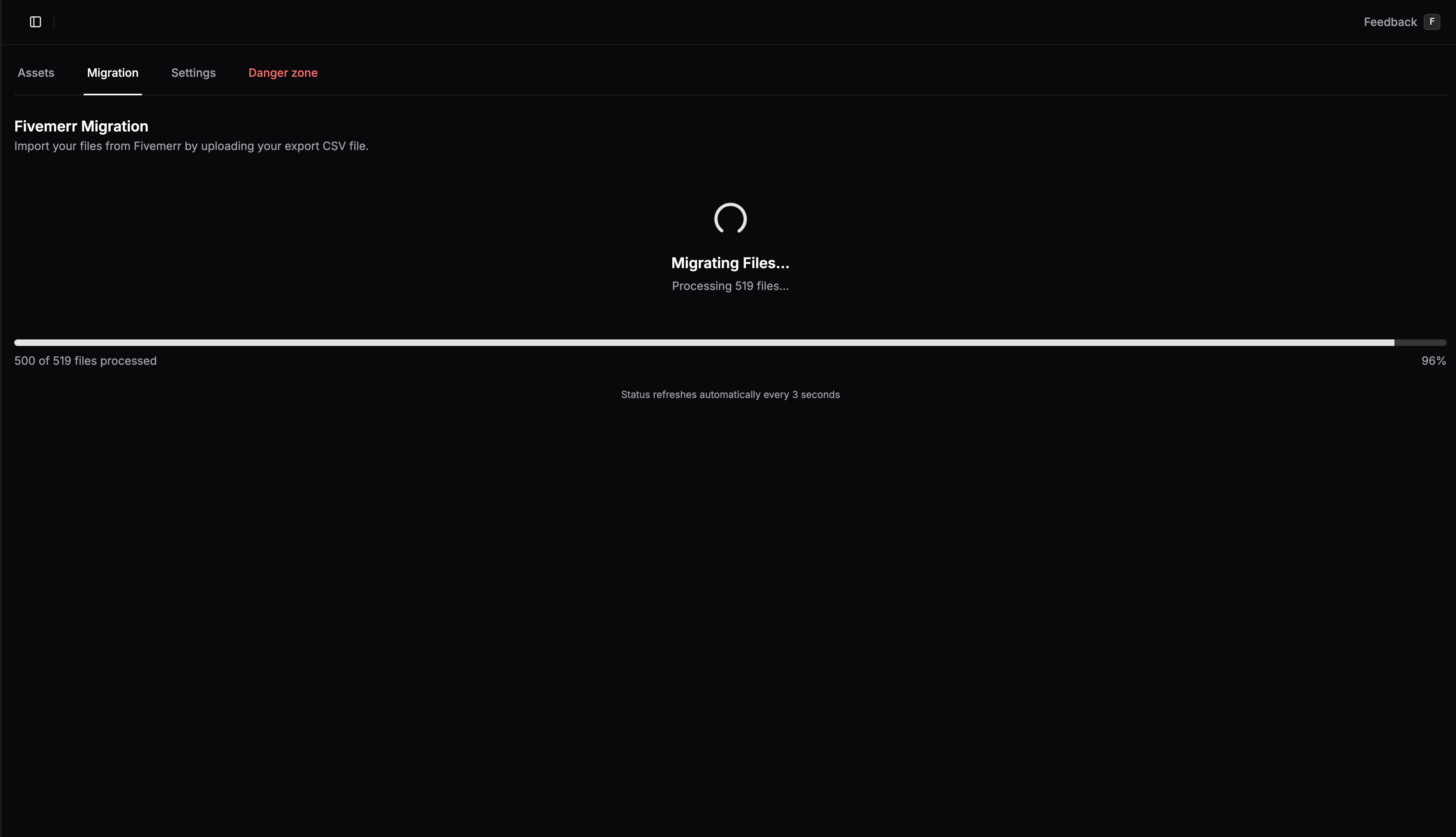
 The status will change from **Queued** to **Processing** as files are downloaded from Fivemerr and uploaded to Fivemanage.
## Important Limits & Notes
### Free Tier & Storage Limits
If you are on the **Free Tier**, you have a 10GB storage limit. However, for this migration:
* **You CAN migrate more than 10GB**: We allow you to migrate your entire Fivemerr library, even if it exceeds the 10GB free limit.
* **Upload Restriction**: Once you exceed the 10GB limit, you will **not be able to upload new files** until you upgrade your plan or delete files to get back under the limit.
Use code **FIVEMERR50** for 50% off your first month of any paid plan if you need more storage!
### Large Files
Large video files may take longer to process. Our system handles files of any size, but please be patient with larger uploads.
### File URLs
We preserve your original Fivemerr file paths to make the transition as easy as possible. You only need to replace the domain in your scripts or configuration files.
* **Old URL**: `https://files.fivemerr.com/images/example.png`
* **New URL**: `https://r2.fivemanage.com/images/example.png`
Simply find and replace `files.fivemerr.com` with `r2.fivemanage.com` in your codebase, and your files will continue to work seamlessly.
The status will change from **Queued** to **Processing** as files are downloaded from Fivemerr and uploaded to Fivemanage.
## Important Limits & Notes
### Free Tier & Storage Limits
If you are on the **Free Tier**, you have a 10GB storage limit. However, for this migration:
* **You CAN migrate more than 10GB**: We allow you to migrate your entire Fivemerr library, even if it exceeds the 10GB free limit.
* **Upload Restriction**: Once you exceed the 10GB limit, you will **not be able to upload new files** until you upgrade your plan or delete files to get back under the limit.
Use code **FIVEMERR50** for 50% off your first month of any paid plan if you need more storage!
### Large Files
Large video files may take longer to process. Our system handles files of any size, but please be patient with larger uploads.
### File URLs
We preserve your original Fivemerr file paths to make the transition as easy as possible. You only need to replace the domain in your scripts or configuration files.
* **Old URL**: `https://files.fivemerr.com/images/example.png`
* **New URL**: `https://r2.fivemanage.com/images/example.png`
Simply find and replace `files.fivemerr.com` with `r2.fivemanage.com` in your codebase, and your files will continue to work seamlessly.