> ## Documentation Index
> Fetch the complete documentation index at: https://docs.fivemanage.com/llms.txt
> Use this file to discover all available pages before exploring further.
# Deleting files
> Learn how to remove individual files or perform mass deletions from your storage.
Fivemanage provides several ways to delete files, ranging from individual removal to bulk mass deletion based on date ranges.
**Deletion is Permanent** Deleting files from Fivemanage is irreversible. Once confirmed, the file and its associated data are permanently removed from our servers and cannot be recovered.
## Individual Deletion
If you only need to remove a few specific files, you can do so directly from the storage list or grid view.
In the **Storage** dashboard, use the checkboxes next to the files you want to remove.
The **Delete** button will appear at the top of the list once at least one item is selected.
A confirmation dialog will appear. Click **Confirm Delete** to permanently remove the selected items.
## Mass Deletion (Danger Zone)
For large-scale cleanup, Fivemanage offers a powerful **Mass Delete** tool in the Danger Zone. This is useful for clearing out months of old data that is no longer needed.
Mass deletion requires **Owner** permissions for the team.
### How to use Mass Delete
Go to **Storage** > **Danger Zone** in your dashboard.
Choose which types of media you want to target (Images, Videos, or Audio). You can select one or all of them.
Select the start and end dates for the files you want to delete. The system will calculate how many files match your criteria.
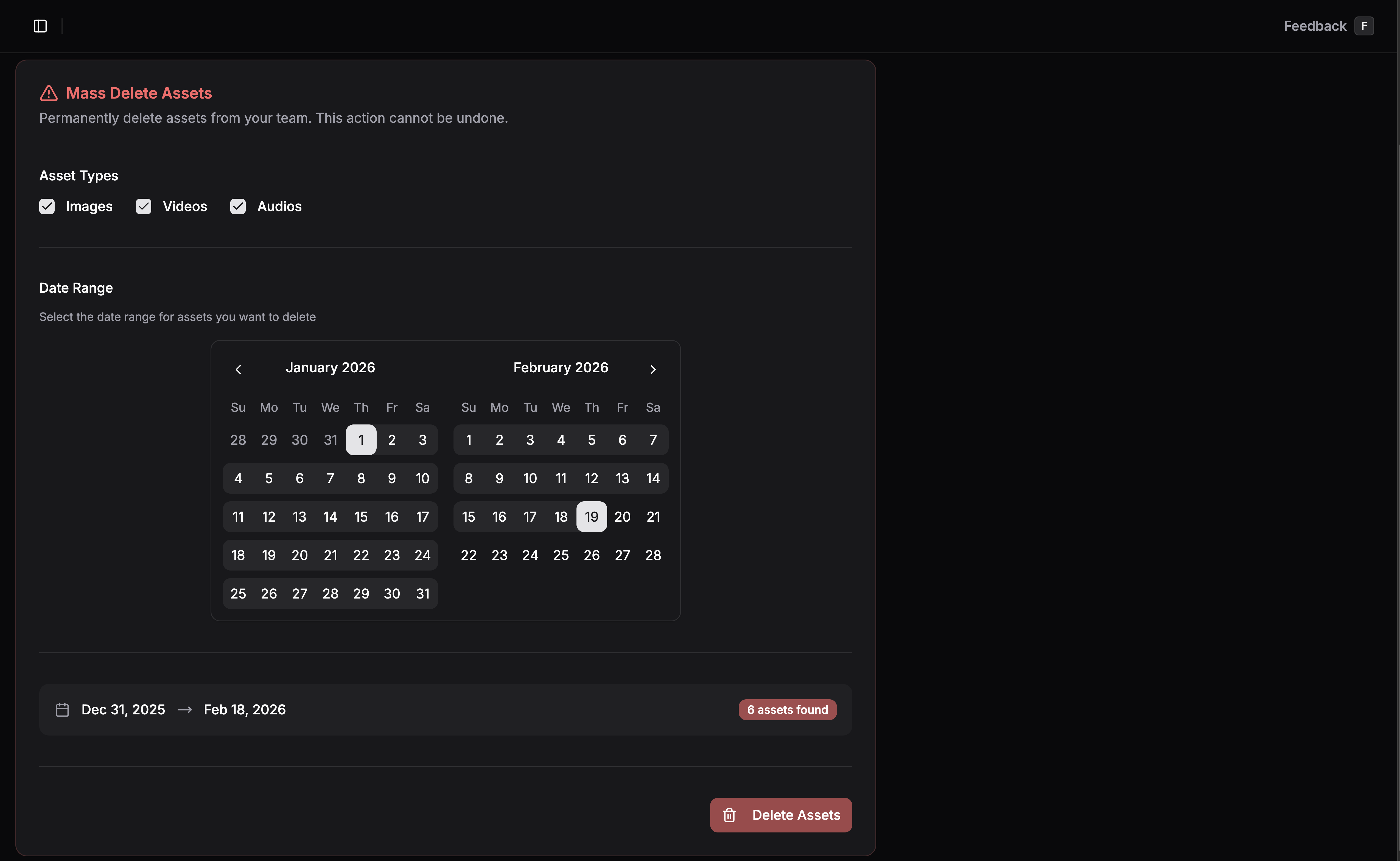 To prevent accidental deletion, you must confirm the total count of files before the process begins.
## Important Considerations
### Retention Exempt Files
Files marked as **Retention Exempt** will still be deleted if you manually select them for deletion or if they fall within a Mass Deletion date range. Exemption only protects files from *automatic* cleanup policies.
### Bulk Selection Tips
* Use the **Search** bar to find specific groups of files (e.g., by extension or filename) before selecting them for deletion.
* You can filter by **Media Type** to quickly select all videos or all audio files in the current view.
Learn how to set up automatic retention policies so you don't have to delete files manually.
To prevent accidental deletion, you must confirm the total count of files before the process begins.
## Important Considerations
### Retention Exempt Files
Files marked as **Retention Exempt** will still be deleted if you manually select them for deletion or if they fall within a Mass Deletion date range. Exemption only protects files from *automatic* cleanup policies.
### Bulk Selection Tips
* Use the **Search** bar to find specific groups of files (e.g., by extension or filename) before selecting them for deletion.
* You can filter by **Media Type** to quickly select all videos or all audio files in the current view.
Learn how to set up automatic retention policies so you don't have to delete files manually.